Sequentum Cloud can export data directly to Amazon S3. It uses AWS AssumeRole to obtain temporary, limited credentials, so you control access through the permissions on your external IAM role. The S3 command is located under Export in the command palette.

Configure an S3 destination

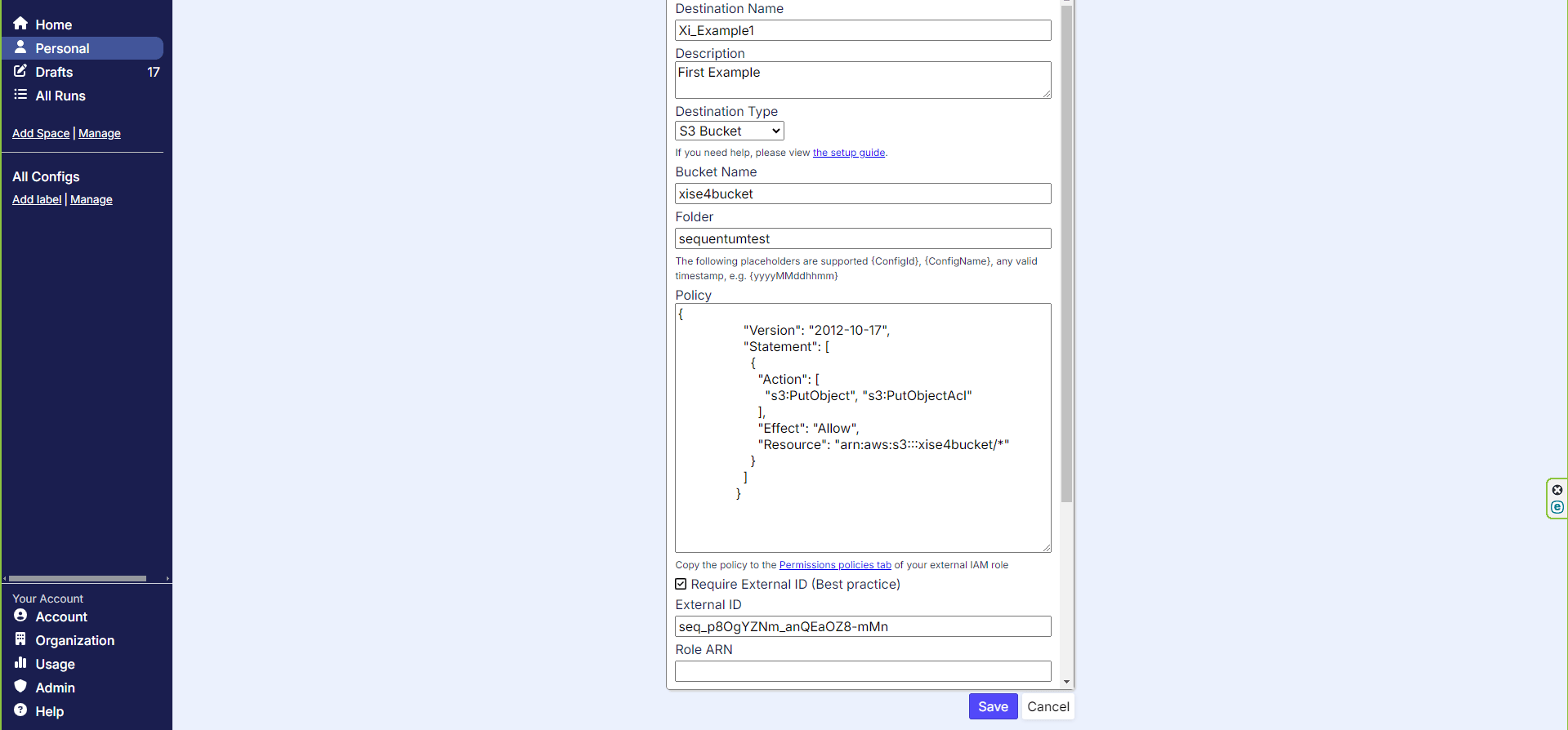
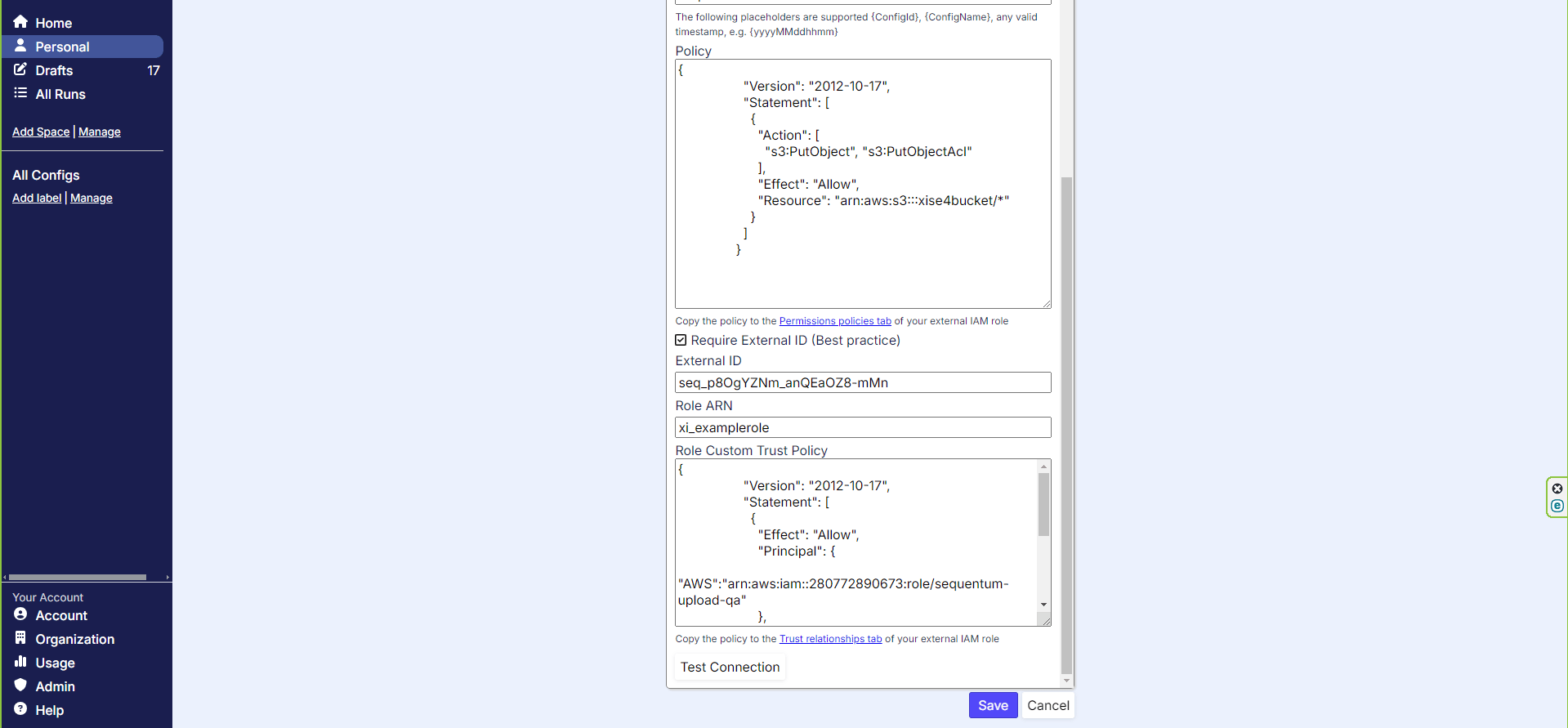
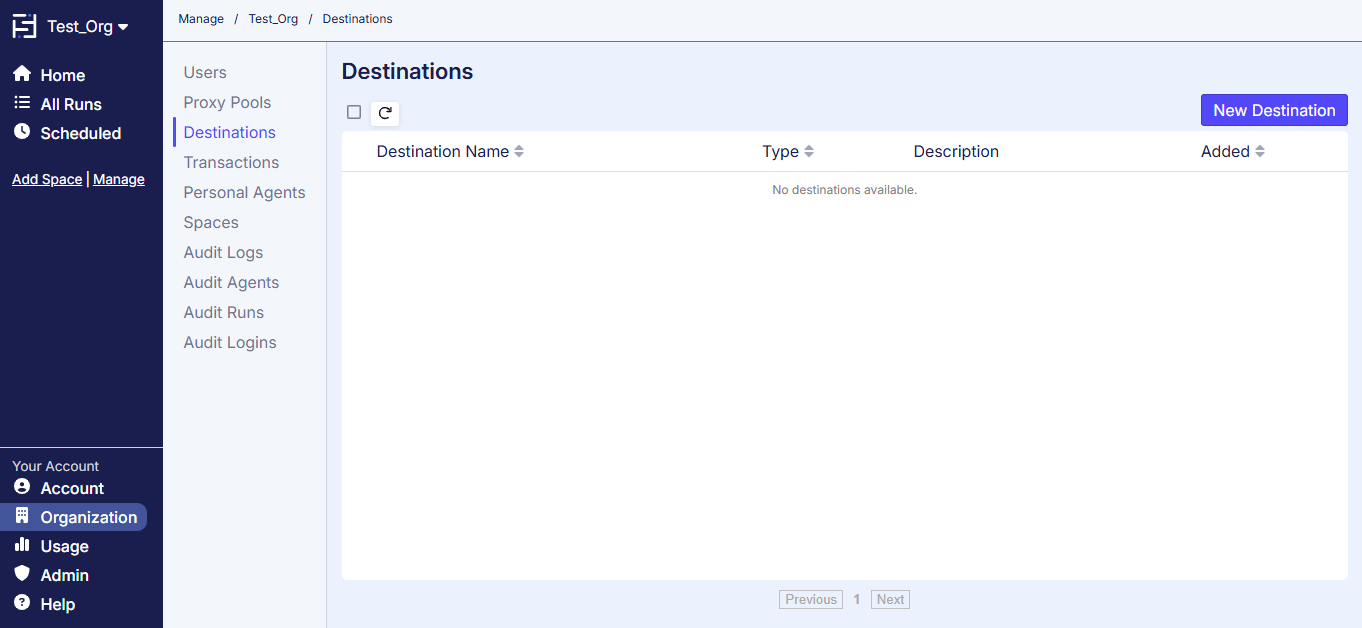
From the Sequentum Cloud dashboard, select Organization in the lower-left corner, then open the Destinations tab. Organization Destinations tab in Sequentum Cloud Select New Destination to add an S3 export. New S3 destination form Enter a destination name and description, and leave the destination type set to S3 Bucket. Enter the bucket name and the folder where you want to deliver the data. Sequentum Cloud generates a policy based on these settings. S3 bucket and folder settings with a generated policy Scroll down and enter the role ARN. Role ARN field for an S3 destination
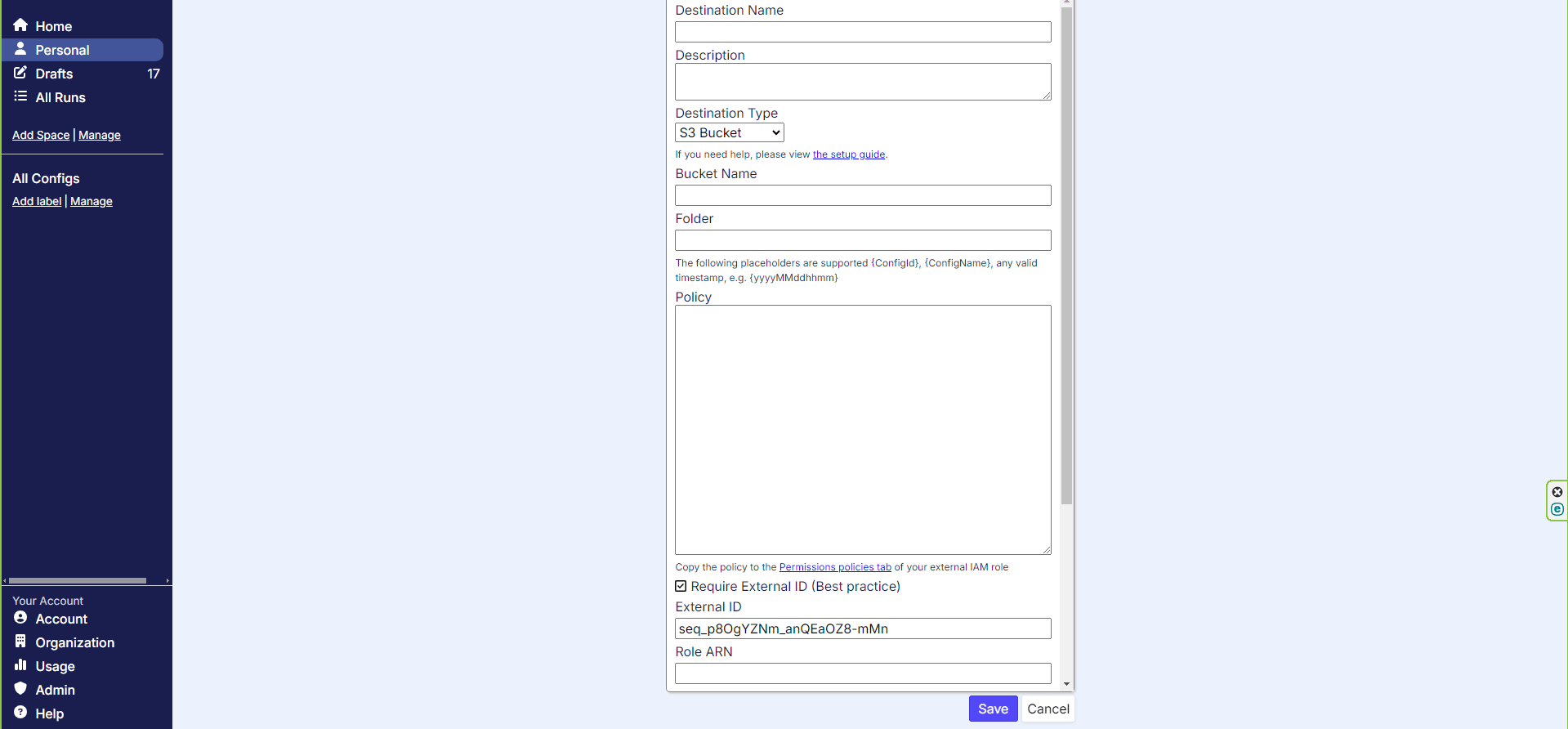
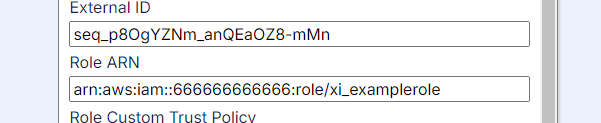
Enter the complete role ARN, for example arn:aws:iam::666666666666:role/examplerole.
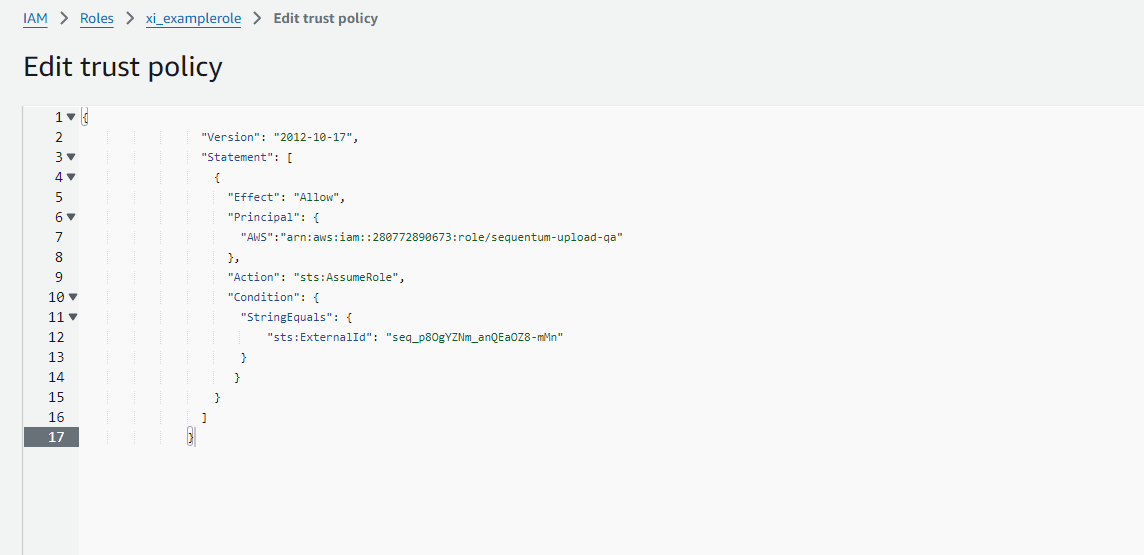
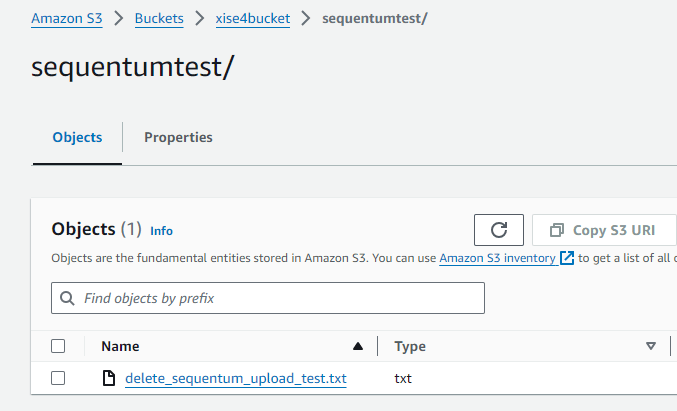
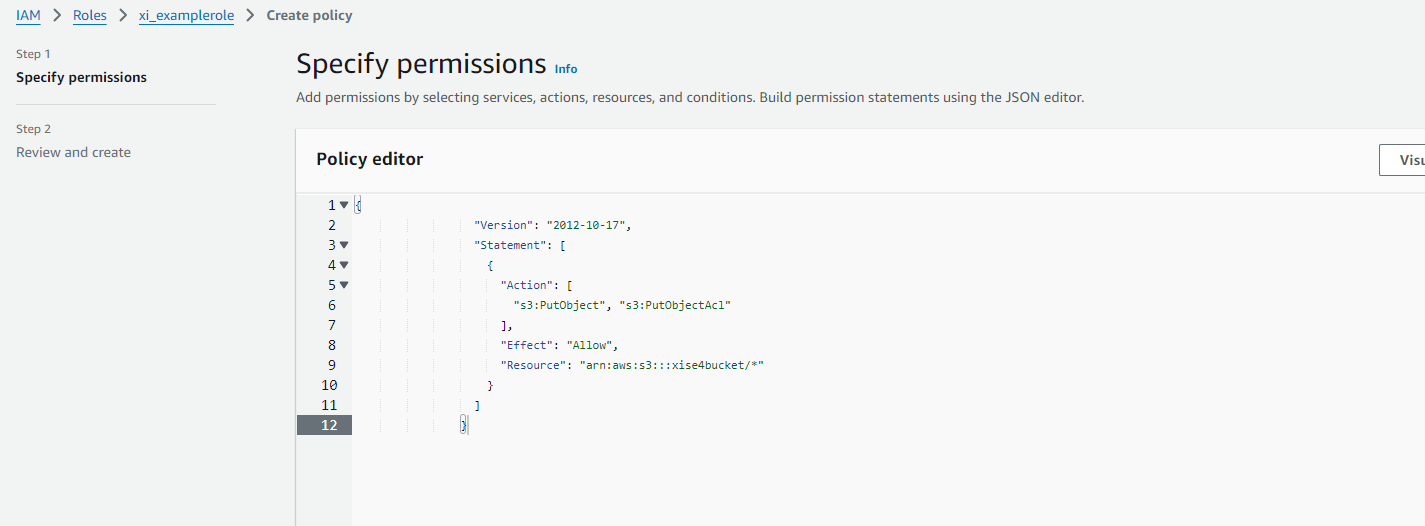
After completing the destination settings, apply the generated policies in AWS if they are not already configured. First, copy everything under Policy to an inline permission on your external IAM role. Open the specified role, add an inline permission, paste the policy, select Next, name the permission, and save it. This permission lets the role upload files to the specified bucket. Add more entries under Action if the role requires additional permissions. AWS IAM inline permission that allows uploads to the S3 bucket After creating the permission, open the Trust relationships tab, select Edit trust policy, paste the generated trust policy, and update the policy. This allows the Sequentum upload role to assume your external IAM role and perform the upload. AWS IAM trust policy that allows the Sequentum upload role to assume the external role Return to the Sequentum Cloud destination and select Test Connection. If the configuration is correct, Sequentum Cloud uploads a test file to your S3 bucket. Test file uploaded to the configured S3 bucket
Add the destination to an Agent

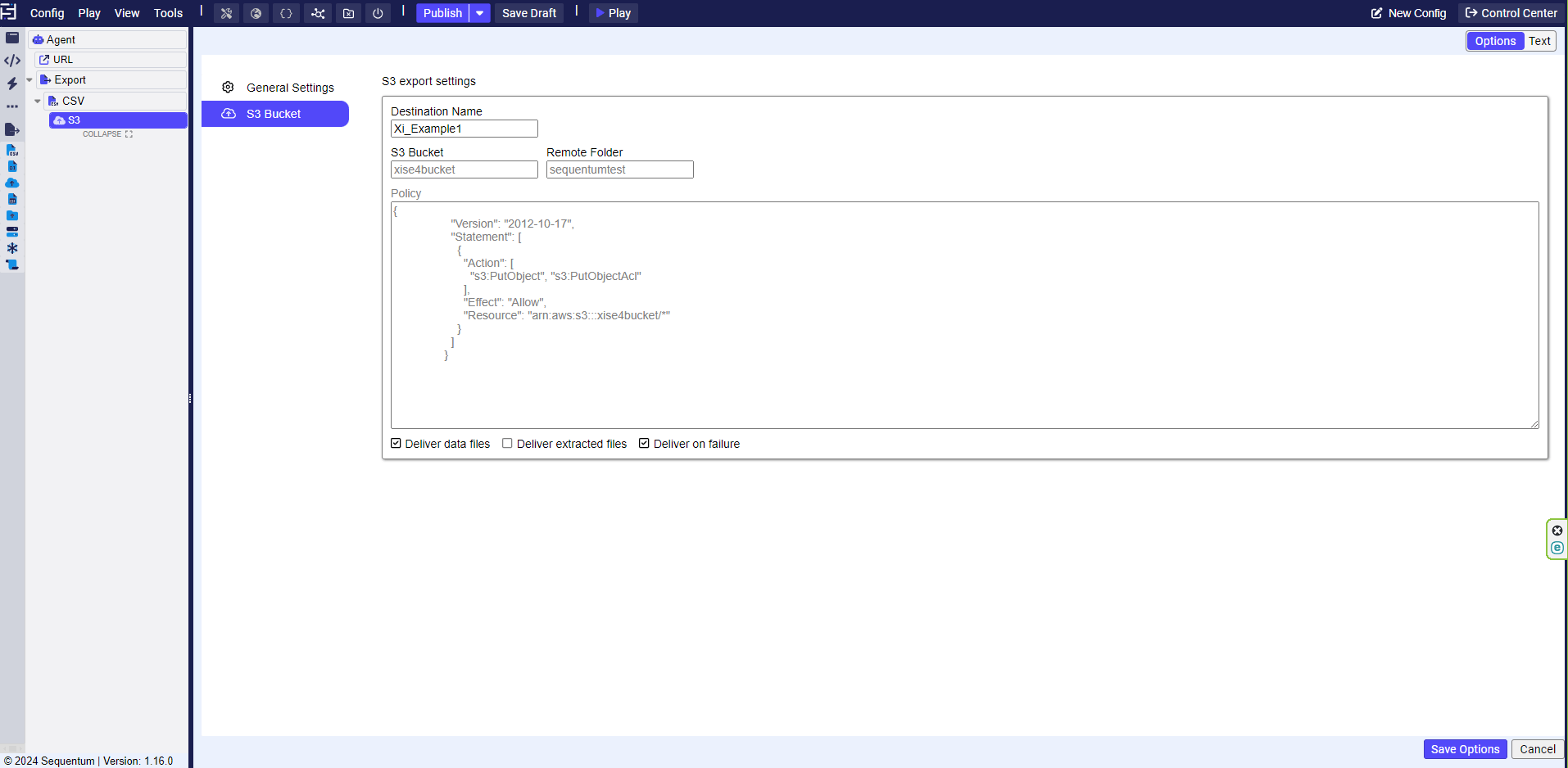
Create an S3 export in your Agent, select the destination you created under Destination name, and save your changes. When the Agent finishes running and generates its CSV file, it also delivers the file to your S3 bucket. S3 destination selected in an Agent export command
Common troubleshooting errors

If you encounter issues during setup, use the following checks to diagnose the configuration.

Add a bucket policy to allow access

Ensure that the bucket policy allows your IAM role to put objects in the bucket. For example:
This policy allows arn:aws:iam::666666666666:role/your-iam-role to upload objects to arn:aws:s3:::examplebucket and set their access controls.

Verify IAM role permissions

Ensure that the IAM role has permission to interact with the specified S3 bucket. Its inline policy should resemble the following example:

Verify the trust relationship policy

Ensure that the trust policy allows the Sequentum role arn:aws:iam::280772890673:role/sequentum-upload-qa or arn:aws:iam::280772890673:role/sequentum-upload-prod, depending on your environment, to assume the external IAM role and upload files. For example:
The required Sequentum role may differ by environment. If necessary, allow both the QA and production roles.

Confirm the external ID

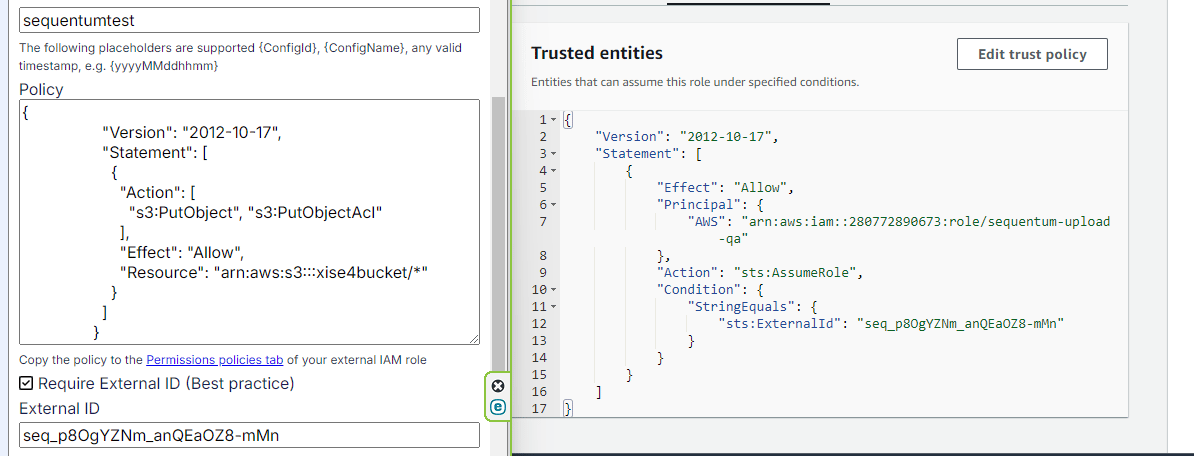
If you copied the trust policy directly from the Sequentum Cloud destination page, the external ID should match. Compare the external ID in Sequentum Cloud with the value in the AWS trust policy. Matching external ID values in the AWS trust policy and Sequentum Cloud
Confirm the role ARN

Confirm that the role ARN includes the full arn:aws:iam:: prefix. Complete AWS IAM role ARN in the S3 destination settings If you still cannot export to your S3 bucket after completing these checks, contact support@sequentum.com.