

Azure Storage export settings
-
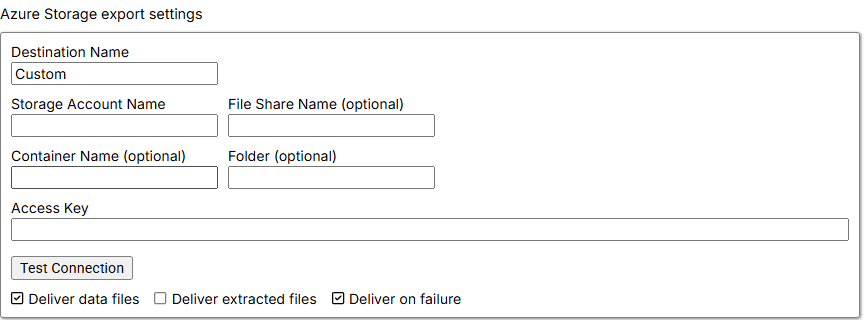
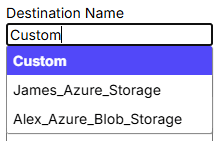
Destination name: Specifies an Azure Storage connection created from Destinations under Organization. You can also create a connection from the command by leaving Destination name set to Custom, the default option.
- Storage Account Name: Specifies the globally unique identifier for your Azure storage account. The name becomes part of the public DNS hostname used to access data objects such as blobs and file storage.
-
File Share Name (optional): Specifies the destination service within the Azure storage account.
- Leave File Share Name empty to deliver the file to Azure Blob Storage.
- Enter a name to deliver the file to Azure File Share. The system uses an existing share with that name or creates one if it does not exist. The name may contain only lowercase letters, numbers, and hyphens.
-
Container Name (optional): Specifies the container in Azure Storage where the data is saved.
- Leave Container Name empty to deliver the file to the default container named
default. - Enter a name to use an existing container or create one if necessary. The name may contain only lowercase letters, numbers, and hyphens.
- Leave Container Name empty to deliver the file to the default container named
- Folder (optional): Specifies a subdirectory in the selected blob container or file share, allowing you to organize exports into folders.
- Access Key: Specifies the high-privilege credential that grants access to all data and management operations in the Azure storage account. Treat it like the account’s root password.
- Test Connection: After completing the required fields, tests whether the Azure Storage delivery connection was established successfully.
-
Deliver Data Files: Defaults to
true, which exports data files such as CSV or Parquet to the destination. -
Deliver Extracted Files: Defaults to
false. Set it totrueto export downloaded files such as HTML, images, or PDFs. -
Deliver on Failure: Defaults to
true, which delivers files even when the Agent fails.