

Browser
General browser settings
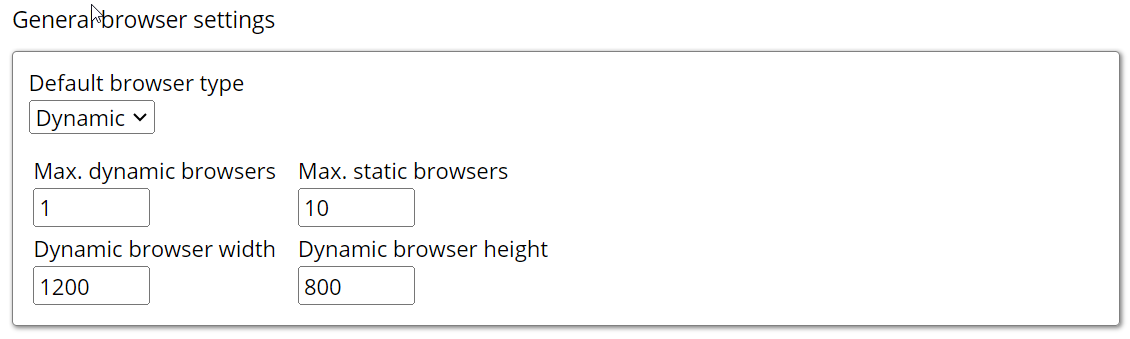
- Default browser type: Specifies the type of browser the Agent uses.
- Dynamic: A fully interactive browser that renders styles and executes JavaScript. Because the page is parsed, rendered, and scripted, Dynamic Agents run more slowly than Static Agents. This is the default.
- Static: A lightweight HTML or JSON parser that loads only specified file types and does not execute JavaScript. Faster than a Dynamic browser, but does not work on websites that rely on JavaScript. Sequentum Cloud selects the appropriate static parser automatically.
- Max. dynamic browsers: The maximum number of active Dynamic browsers the Agent can use to retrieve data (an active browser is one currently loading a page). Default
1. The best value depends on how much traffic the target website tolerates without blocking, plus available memory and CPU — Dynamic browsers are resource-heavy and open many concurrent connections. - Max. static browsers: The maximum number of HTML or JSON parsers active concurrently. Default
10. Parsers are cheap (one connection each), so this can be much higher than the Dynamic limit. - Dynamic browser width / height: Runtime dimensions of every Dynamic browser. Defaults
800×1200. Dynamic browsers only.
Block browser content

- Load images by default: Whether the browser downloads and displays images. An Agent can capture images without displaying them, but screenshots require images to be visible. Disabling downloads improves performance. Dynamic browsers only; selected by default.
- Load styles by default: Whether the browser downloads style sheets (also applies to the Static HTML parser in design mode). Selected by default.
- Block known ad servers by default: Prevents loading content from known ad servers, trackers, and social-media widgets, which speeds up page loading and processing. Selected by default.
- Block requests between actions by default: Blocks background network requests not triggered by user actions, reducing unwanted traffic and producing cleaner extraction activity. Cleared by default.
Custom JavaScript

- Inject custom JavaScript: Injects custom JavaScript into every page loaded by a Dynamic browser. Cleared by default.
Advanced browser settings
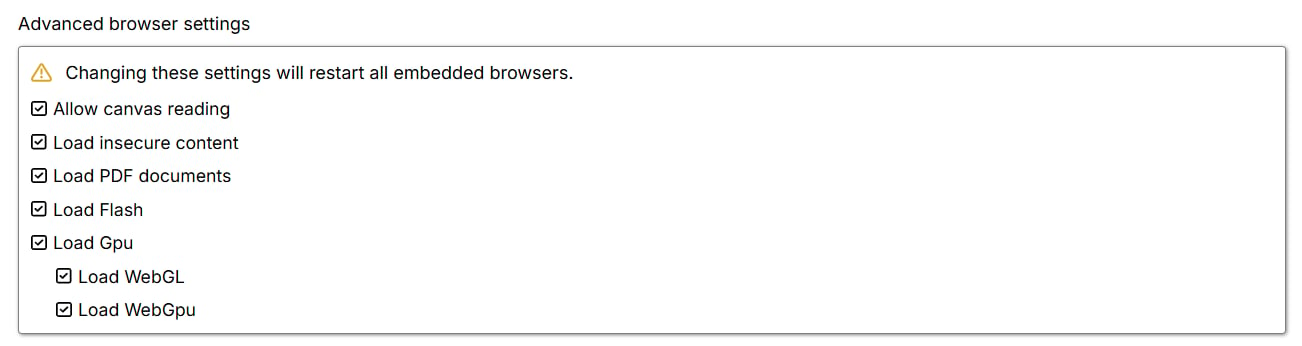
- Allow canvas reading: Enables canvas reading at runtime, which can help with websites that use canvas in browser-fingerprinting checks. Dynamic browsers only; cleared by default.
- Load insecure content: Allows an HTTPS page to load JavaScript, CSS, or plugins from HTTP URLs. Cleared by default.
- Load PDF documents: Enables the PDF extension in the Dynamic browser, allowing the Agent to load PDF URLs and download PDF documents; can also help prevent blocking on some sites. Cleared by default.
- Load WebGL / Load Flash: Enable WebGL or Flash in Dynamic browsers at runtime. Both cleared by default.
- Load GPU: Hardware acceleration for complex or animated pages. Selected by default.
- Load WebGPU: Enables WebGPU so pages relying on modern graphics APIs render correctly. Selected by default.
Input parameters
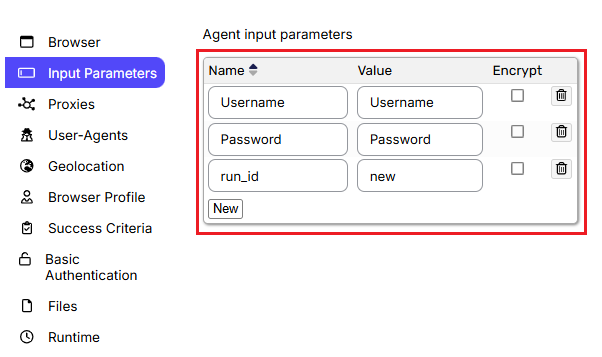
Input parameters are named values assigned when an Agent starts. Any data-consuming command in the Agent can reference them by name, and their values can be overridden externally in the runtime configuration (for example, when starting a run through the API).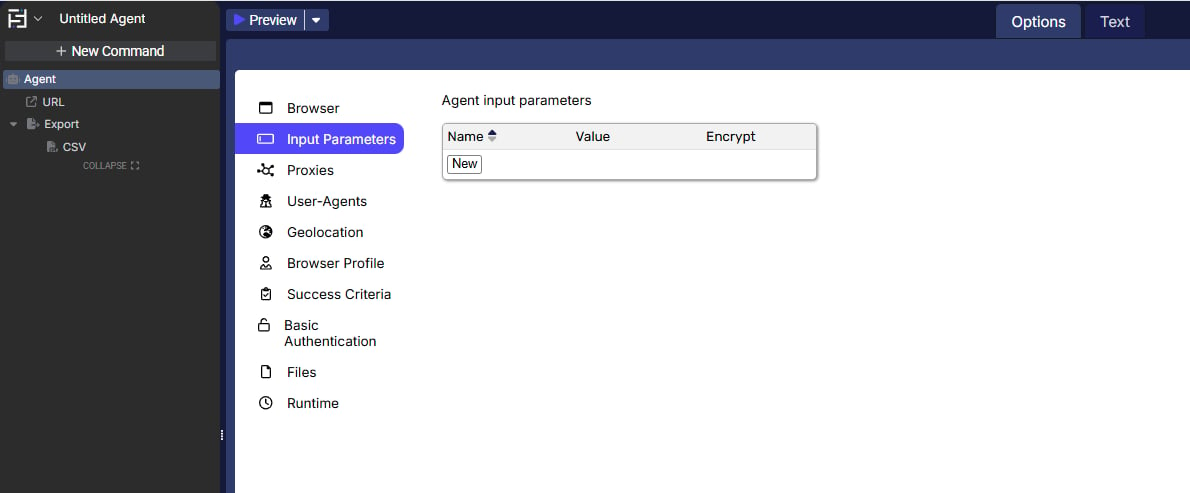
- Name: The name used to reference the parameter in data-consuming commands.
- Value: The value used during execution unless overridden at runtime.
- Encrypt: Stores and displays the value in encrypted form.
Proxies
A proxy server routes the Agent’s requests and replaces its IP address — either with a single proxy or with addresses from a pool that rotates as pages load.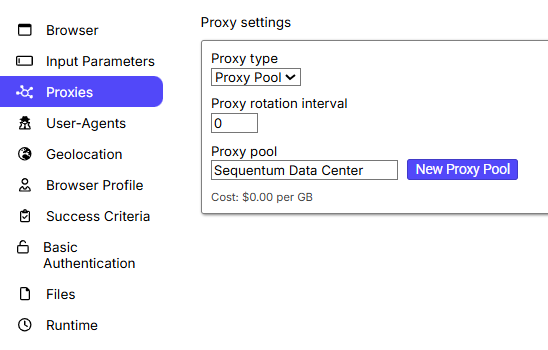
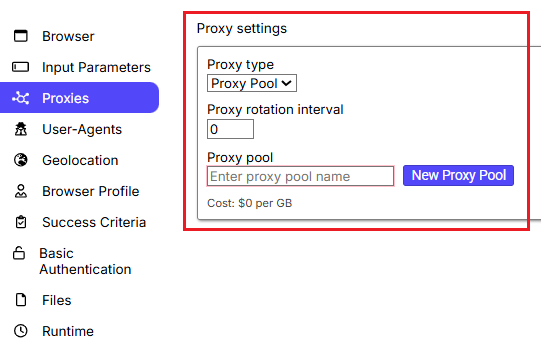
- Proxy rotation interval: The number of page loads between proxy rotations. The right interval depends on how readily the target website blocks requests. Default
0(rotation disabled). - Proxy pool: The pool to use, selected from the pools created under Organizations → Proxy Pools in Control Center.
- New Proxy Pool: Creates a pool inline: give it a name (shown in the Proxy Pool List and used at runtime), an optional description, and the list of proxies with their usernames and passwords.
User agents
User agent pools combine override and rotation settings. They can rotate user agents on each page load or together with proxy addresses, and can shuffle the pool at runtime.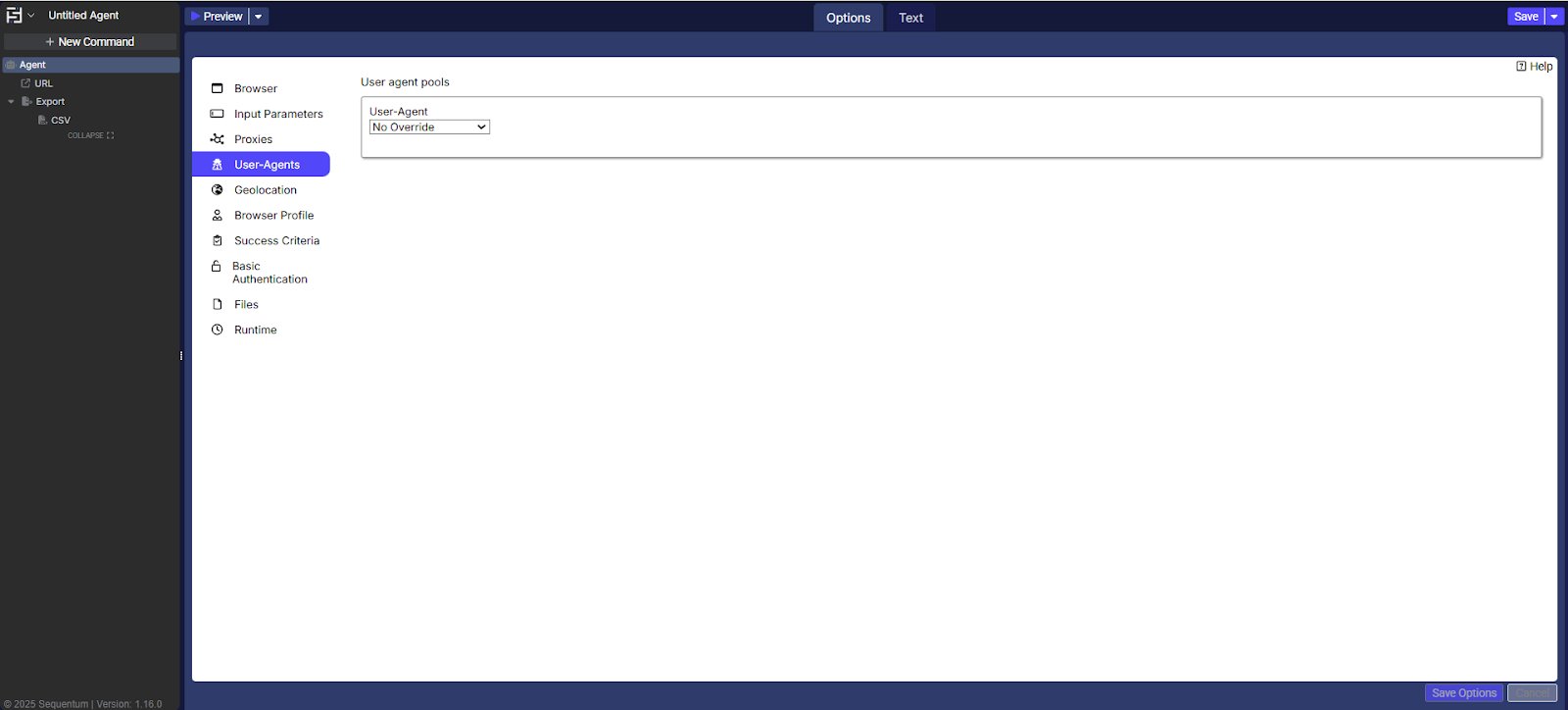
- User agent: No Override (default — the standard Chromium user agent), Chrome, or Override With Pools.
- Override With Pools: Combines all enabled user agent pools so the Agent can mimic different browser environments and avoid checks that rely on a consistent user agent.
- Rotate User-Agent: When the Agent switches user agent. Default No Rotation; alternatives are On Every Page Load, Associate With Proxy Address, and New On Proxy Rotation.
- User-Agent Pools (Type): Restricts pools to browser types (Chrome, Firefox) or device types (mobile, desktop).
- Shuffle User-Agents: Randomizes the order of user agents from the combined enabled pools at runtime. Applies only when overriding with pools; selected by default.
- New User-Agent Pool: Creates a pool by entering user agent strings manually or importing them from a CSV file (e.g.
Mozilla/5.0 (Windows NT 10.0; Win64; x64) AppleWebKit/537.36 (KHTML, like Gecko) Chrome/119.0.6045.159 Safari/537.36). Existing pools can be enabled, disabled, edited, or deleted from the User Agent Pools list.
Geolocation
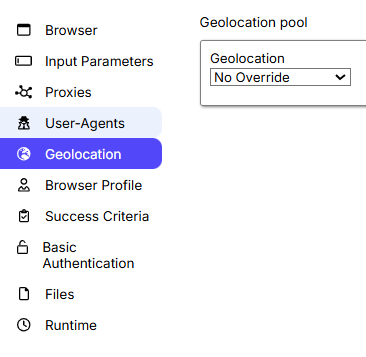
Overrides the system time zone with a pool of IANA time zone IDs (such asAmerica/Los_Angeles). Default No Override.
-
Override With Pool: Replaces the system time zone with values from a custom pool, reducing detection based on static browser metadata.
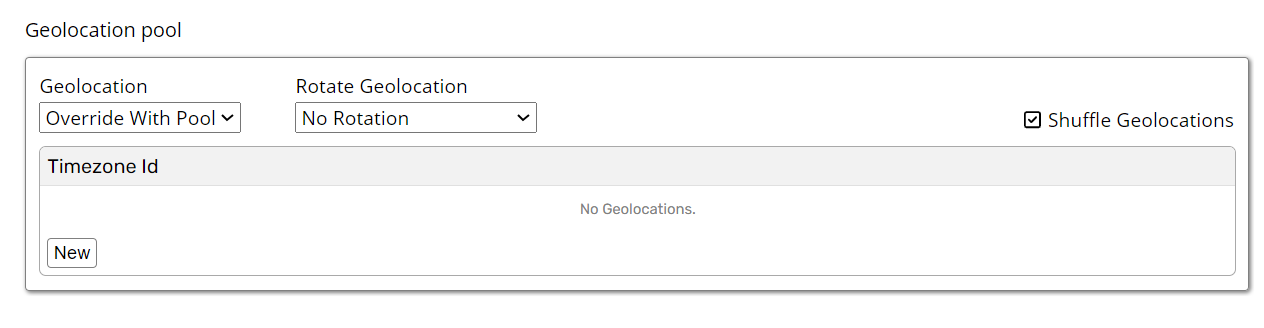
- Rotate Geolocation: When the Agent switches time zone: No Rotation (default), On Every Page Load, or New On Proxy Rotation. Rotation can make some websites behave incorrectly.
- Shuffle Geolocations: Uses the pool’s time zone IDs in random order instead of the configured order. Enabled by default.
- Timezone ID: The IANA IDs in the pool; add or remove entries with New and Delete.
Browser profile
Controls how the browser identifies itself and what browser and device information it exposes to websites. The Agent can rotate among generated (spoofed) browser profiles during extraction.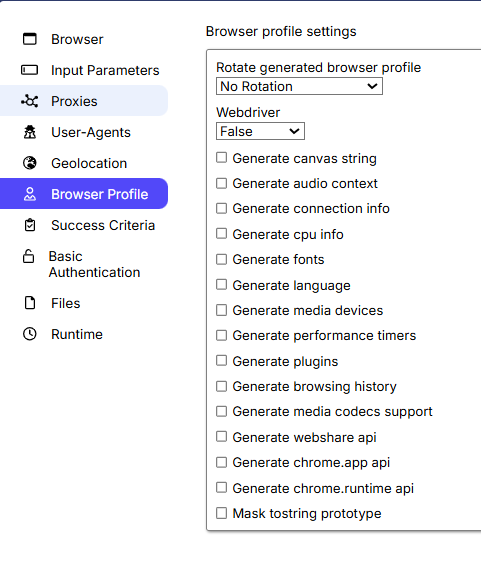
- Rotate browser profile: No Rotation (default), On Every Page Load, or New On Proxy Rotation. No Fake Profile uses the real browser profile and disables all of the generation settings below.
- Webdriver: The value of
navigator.webdriver: False (default), True, or Undefined (deletes the property). - Generate canvas string: Returns a valid, randomly spoofed canvas string — commonly used in fingerprinting — even when Allow canvas reading is disabled. The legacy manual states this setting’s default inconsistently (both enabled and disabled); verify in the product before relying on it.
- Generate audio context: Fake audio fingerprint containing random noise. Disabled by default.
- Generate connection info / CPU info / fonts / language / media devices / performance timers / plugins: Each returns false information for the corresponding fingerprinting surface. All disabled by default.
- Generate browsing history: Returns a random history length instead of the real one. Disabled by default.
- Generate media codecs support: Simulates codec support to pass audio/video format checks. Disabled by default.
- Generate Web Share API: Mocks
navigator.shareandnavigator.canShare. Disabled by default. - Generate
chrome.appAPI /chrome.runtimeAPI: Mock Chrome extension APIs and their responses. Disabled by default. - Mask
toString()prototype: Returns native-lookingtoString()output when bot-detection scripts inspect overridden functions. Enabled by default. - Generate User Agent Data: Whether user-agent client-hint metadata is sent to the target site; when disabled, some fields remain empty.
Success criteria
Conditions under which an Agent run counts as successful. All fields are empty (No Check) by default.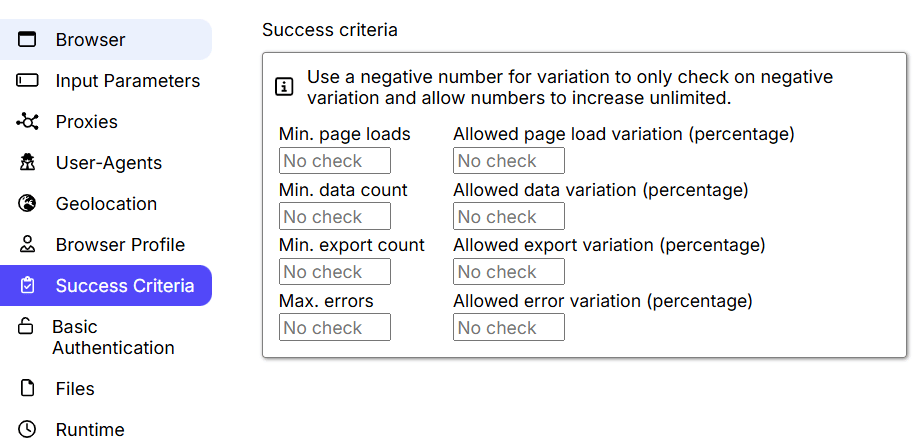
- Min. page loads: Minimum number of pages the Agent must load.
- Min. data count: Minimum number of data entries the Agent must extract. Enable Increase data count on a command to increment this counter whenever that command runs.
- Min. export count: Minimum number of rows that must be exported — prevents blank-file exports.
- Max. errors: Maximum number of page errors allowed.
80% for Min. data count requires at least 80% of the previous successful run’s data count. Percentage criteria always pass when the Agent has no prior successful run.
Allowed-variation fields work the same way against the previous run: Allowed page load / data / export variation set floors (90% = at least 90% of the previous value), and Allowed error variation sets a ceiling (10% = error count below 10% of the previous run’s).
Basic authentication
Supplies a Username and Password for websites that request credentials through Basic Authentication. Dynamic browsers only — Basic Authentication is not supported in Static mode.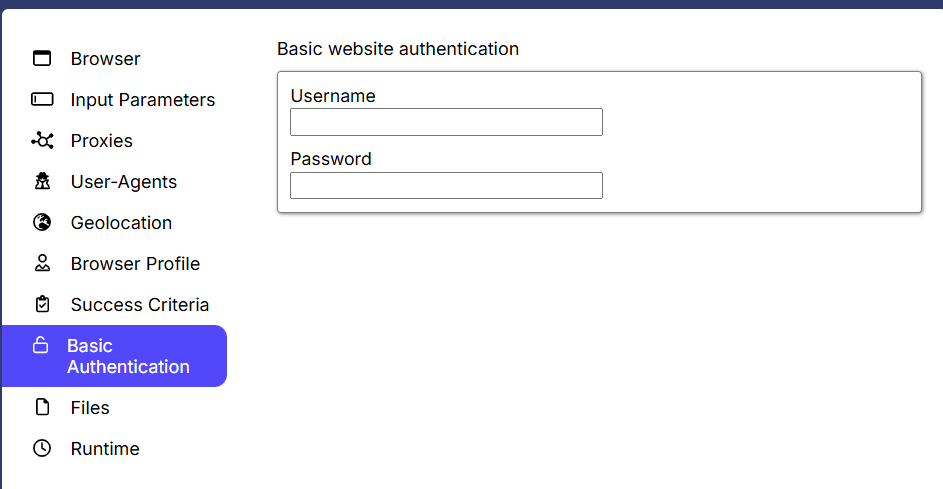
Files
Files uploaded here are available to every command and script in the Agent. Drag files into the drop zone or use Upload File; each file can be viewed, edited in place, downloaded, or deleted, and shows its size and upload time.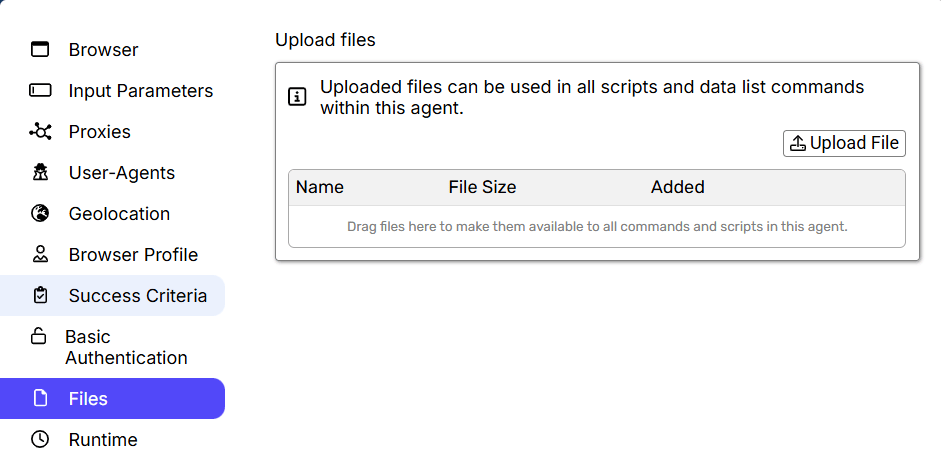
Runtime data
Runtime data retention keeps run state available after an Agent stops so the run can be continued or retried. Default When Errors Exist.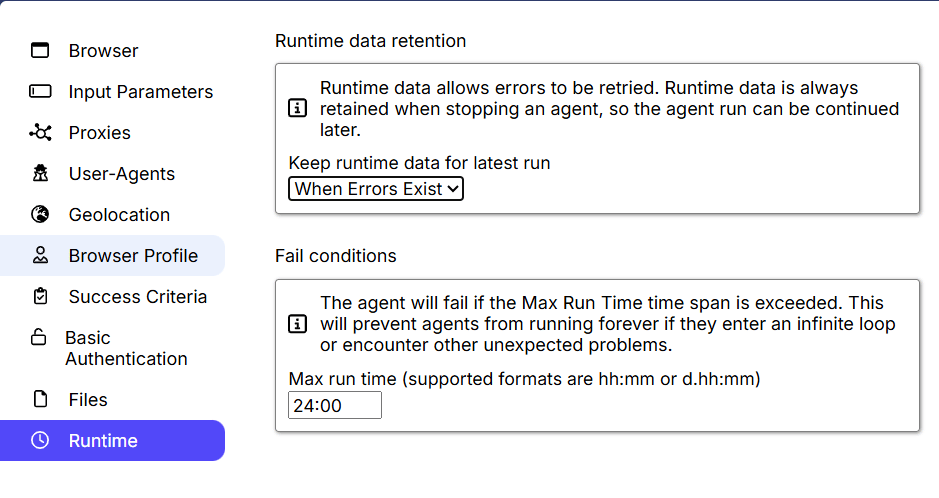
- Always: Retain runtime data on success and failure.
- Never: Retain nothing — retry is unavailable.
- When Errors Exist: Retain runtime data only for failed runs.
Fail conditions
- Max. run time: Fails and stops the Agent if it does not finish within the configured duration, entered as
HH:mm:ss. Default24:00.