Example
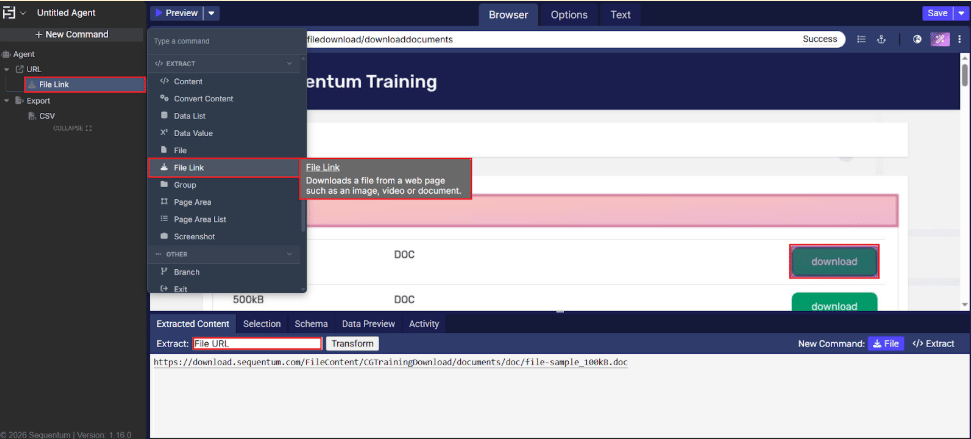
Command properties
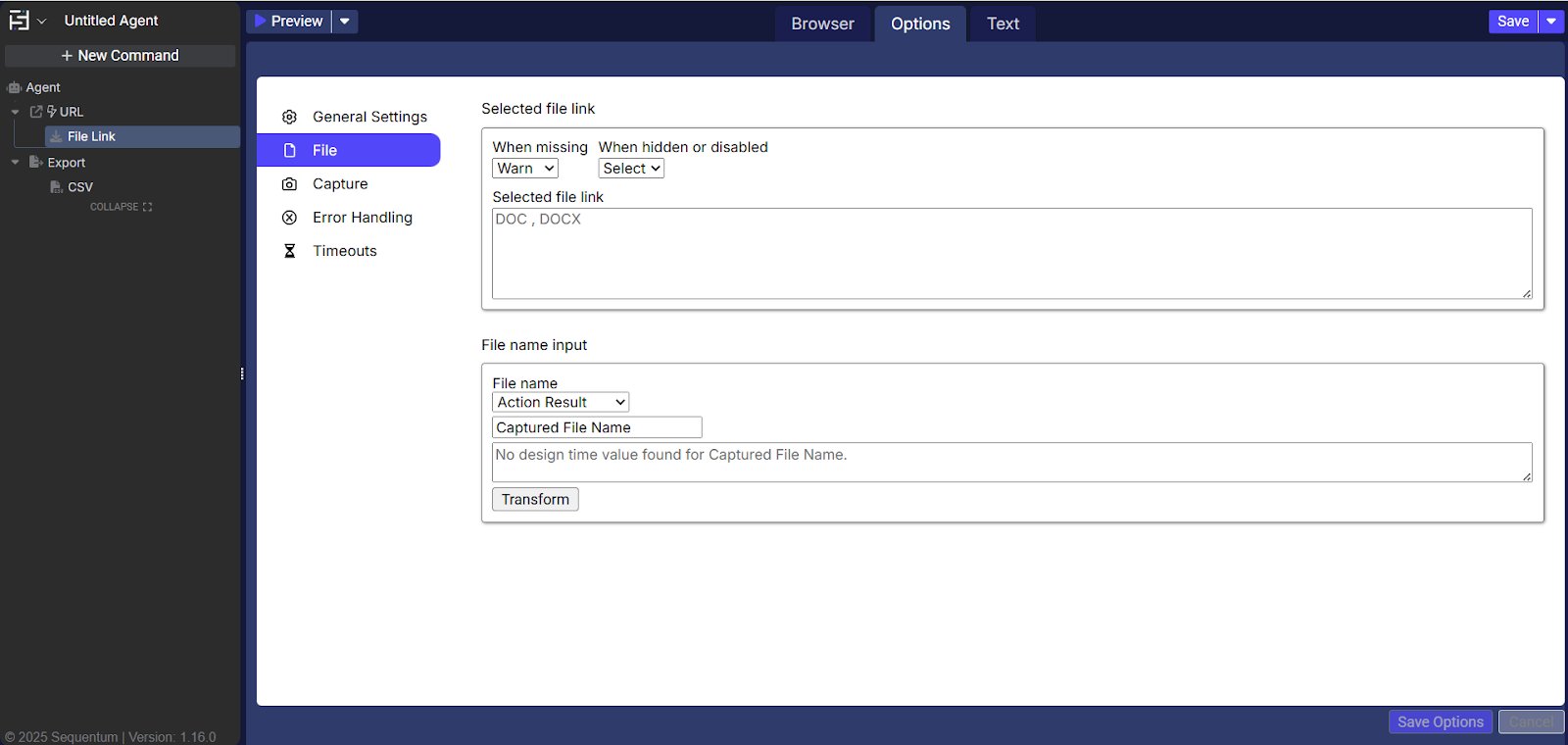
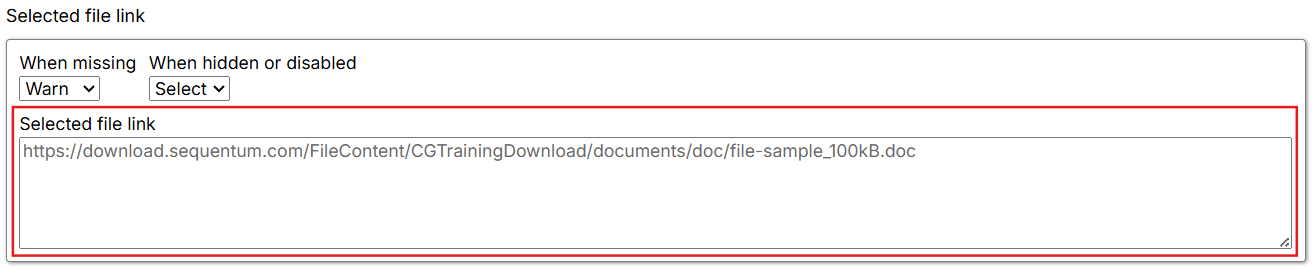
File → selected file link
-
When missing: Specifies what happens when the selection does not exist on the current page. The default is Warn.
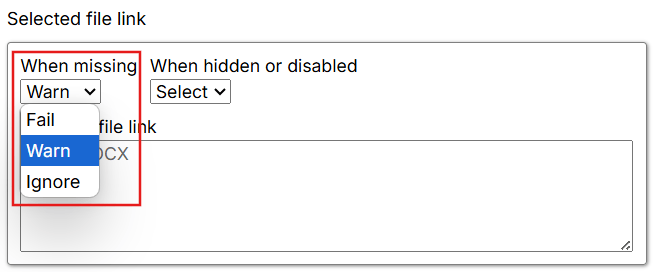
- Fail: Fails the Agent at this command and stops further execution.
- Warn: Ignores this command and its child commands, and logs a page-load error.
- Ignore: Ignores this command and its child commands.
-
When hidden or disabled: Selects visible and disabled elements when set to Select. Otherwise, it selects only visible and enabled web elements.
- Select: Selects visible and disabled elements that match the XPath.
- Ignore: Selects only when the XPath selection is present and the web element is enabled.
- Selected file link: Shows the content selected by the command on the current page. If the selection is missing or no content is selected, it displays No selected Content.
File → file name input
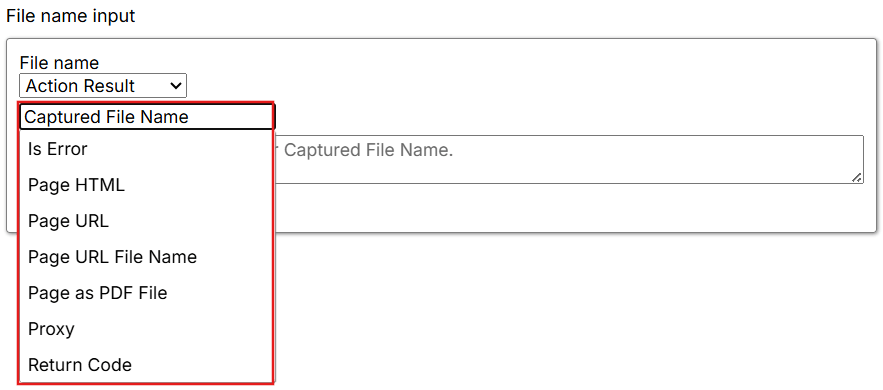
Use File name to select the source for the downloaded file’s name. The default source is Action Result.-
Action Result: Derives the file name from an action result. Available results are:
- Captured File: Provides the file name and its size in square brackets. A transformation can further customize the value.
- Captured File Name: Provides the captured file’s name. A transformation can further customize the value.
- Is Error: Returns
false. A transformation can further customize the value. - Page URL: Provides the page URL. A transformation can further customize the value.
- Page URL File Name: Provides the file name from the page URL. A transformation can further customize the value.
- Return Code: Provides the command status code, indicating whether the command executed successfully. A transformation can further customize the value.
- Proxy: Provides the proxy server used for the request. A transformation can further customize the value.
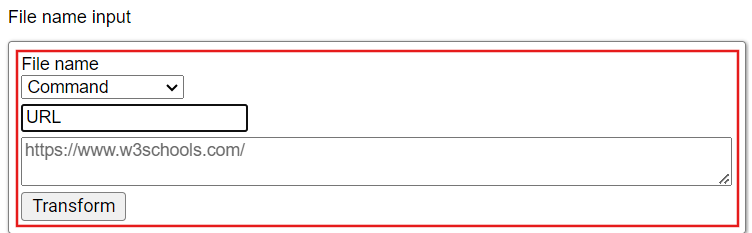
- Command: Derives the file name from values produced by parent commands. A transformation can further customize the value.
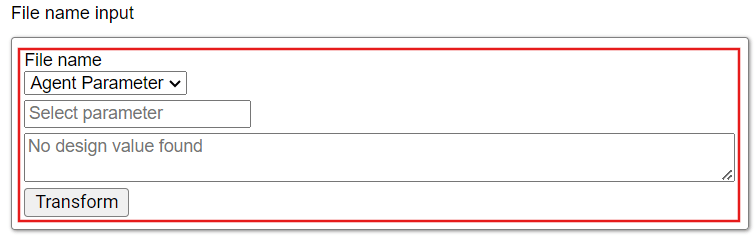
- Agent Parameter: Derives the file name from an Agent input parameter. A transformation can further customize the value.
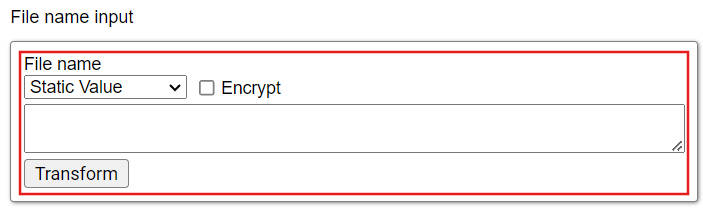
- Static Value: Uses a file name entered manually. A transformation can further customize the value.
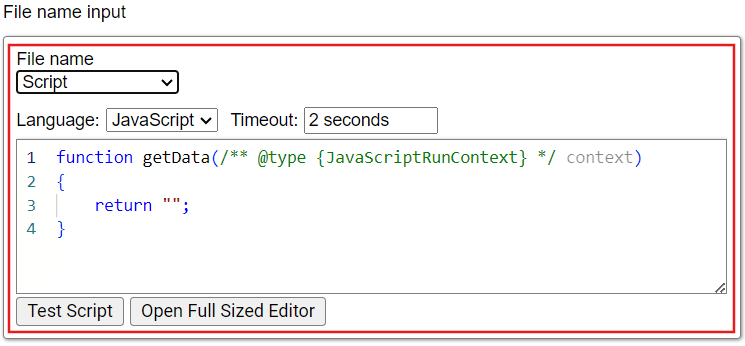
- Script: Uses a Regex, JavaScript, C#, or Python script to create a dynamic, context-specific file name.
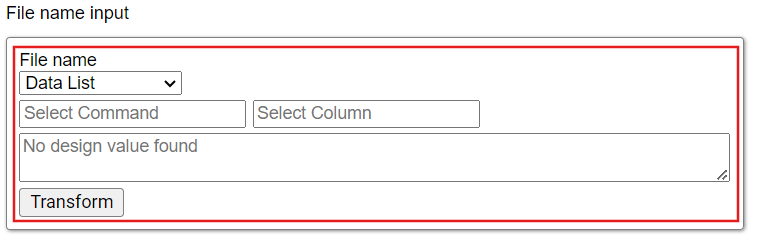
- Data List: Derives the file name from a selected column in a Data List command. A transformation can further customize the value.
Capture → capture settings
See Capture → capture settings for more information.Error handling
See the legacy Error Handling section for more information.Timeouts → file download timeouts
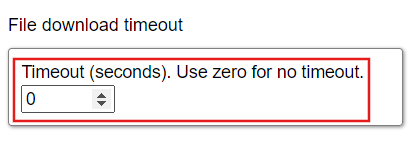
File Download Timeouts: Specifies how long a file may take to download before the process is terminated. Adjust the timeout to manage slow connections and prevent indefinite waits.- Timeout (seconds): Sets the number of seconds allowed for the download. A value of
0, the default, disables the timeout and lets the download continue until it completes.