

Command properties
List → data list input
Data Type: Specifies the type of input data or file to process. The default is CSV. Available data types are: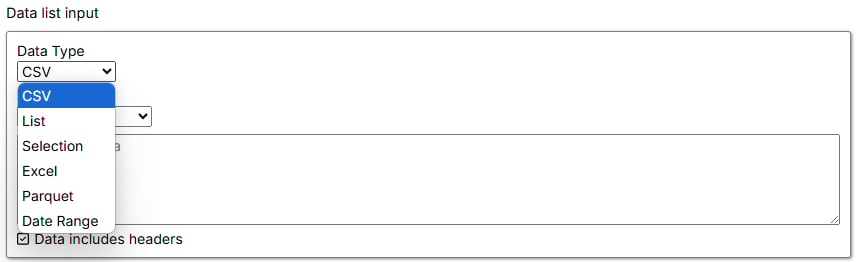
- CSV: Comma-separated values commonly used for tabular data.
- List: A simple list of values separated by delimiters such as commas or spaces.
- Selection: Input values selected from a web page by using a relative XPath.
- Excel: A Microsoft Excel spreadsheet.
- Parquet: A columnar file format optimized for large data sets.
- Date Range: A sequence of dates between specified From and To dates. For example, a range from January 1, 2019 through January 5, 2019 can produce
2019-01-01,2019-01-02,2019-01-03,2019-01-04, and2019-01-05when the corresponding date format is selected.
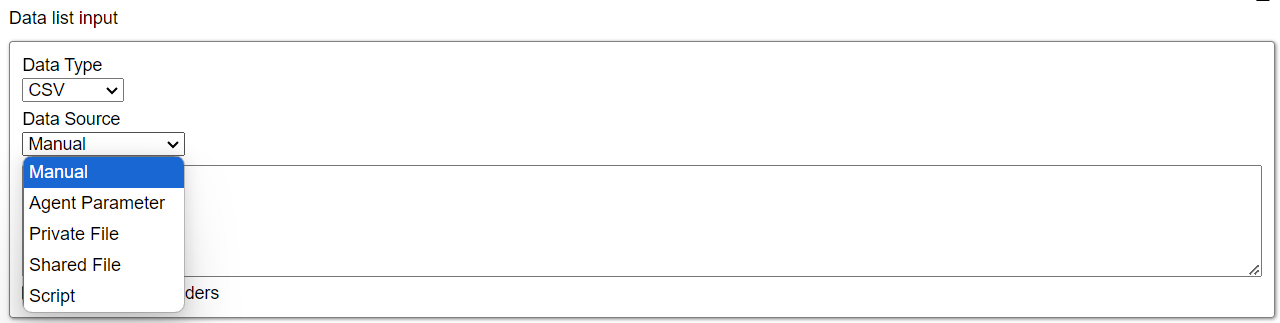
- Manual: Lets you enter data manually. This source is available for CSV and List data types.
- Agent Parameter: Uses the value of a selected input parameter. This source is available for CSV and List data types.
-
Shared Files: Uses files stored in a designated space. Shared files are available to users with access to that space and can be reused by multiple Agents in the same space, but they are not available from other spaces.
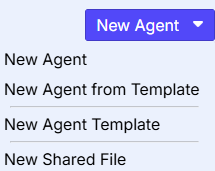
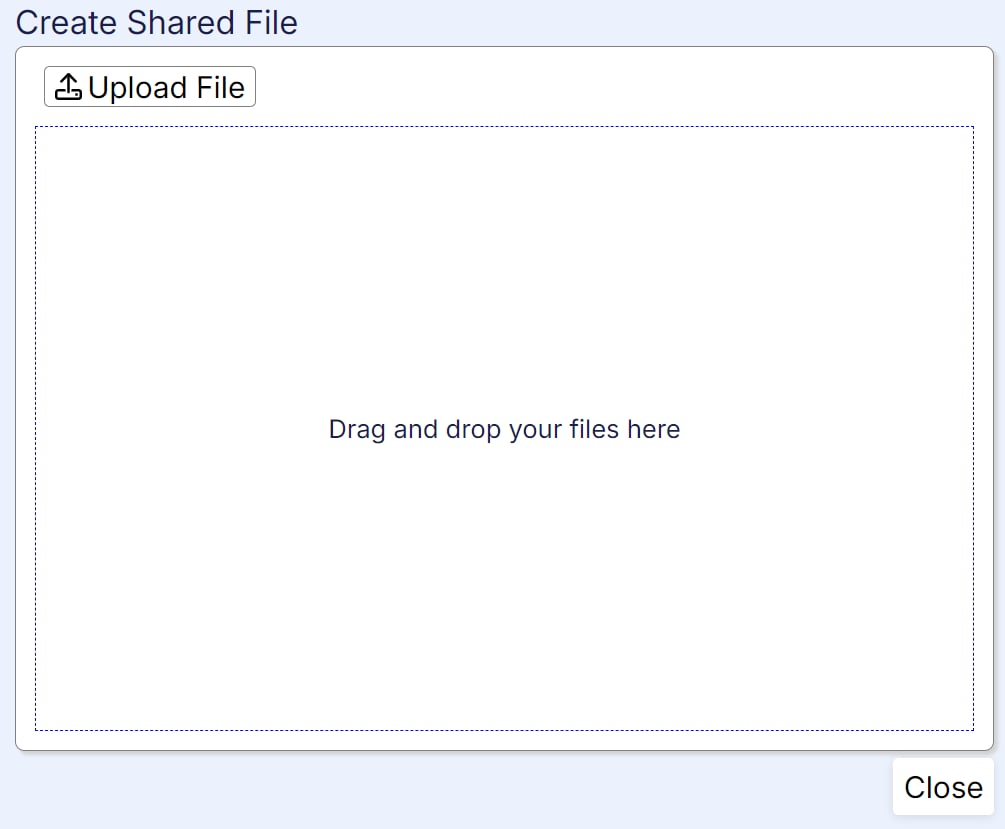
To upload a shared file, open the New Agent menu and select New Shared File.
- Private Files: Uses files stored in the Agent’s Files section. These files are available only to that Agent.
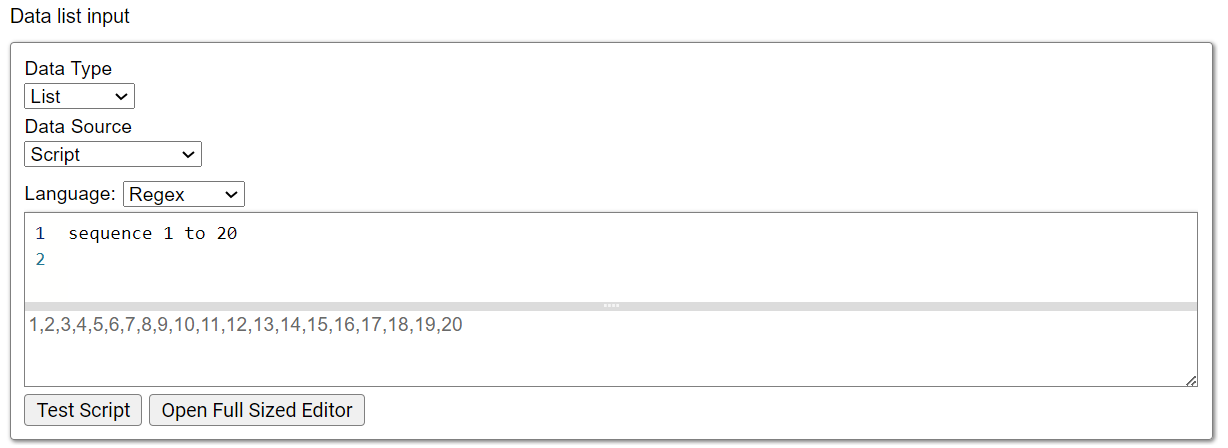
- Script: Runs a script written in C#, Python, JavaScript, or regular-expression syntax to access or manipulate the input data.
C#
Python
Regex
-
Data includes headers: Specifies whether the input data has a header row. This option is checked by default for every data type.
- Checked: Skips the first row because it is assumed to contain column headers. This is commonly used for CSV, Excel, and Parquet files.
- Unchecked: Processes every row, including the first. Use this setting for data without headers or when the first row must be processed.
List → list settings
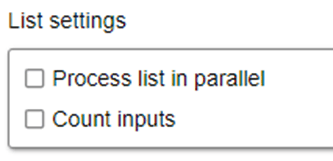
Process List in Parallel: Controls whether input data is processed in multiple sessions simultaneously. This option is disabled by default. When it is enabled and a valid session range is specified, the Agent splits the data across the sessions. When disabled:- The input data is processed entirely in one session.
- The Agent does not split the input data even when multiple sessions are specified.
- The Agent divides the input data into parts and processes each part in a separate session.
- Parallel sessions can improve performance for large data sets or complex operations.
- The command tracks how many times it is executed.
- The count can measure Agent progress and help determine extraction success criteria.
Export
See the legacy Export section for more information.Files → upload files
This section uploads files and makes them available to all commands and scripts within the Agent. Multiple files can be added at once.- Drag and Drop Files: Adds multiple files by dropping them into the area labeled Drag files here…. Uploaded files become accessible and visible in the interface.
- Upload File: Adds multiple files by using the file picker. Uploaded files become accessible and visible in the interface.
-
Name: Opens a detailed view for the selected file that shows its File Size, Last Modified date, and editing options.
- Back to Files: Returns to the Upload files view.
- Edit: Lets you modify the uploaded file.
- Save button: Saves changes made to the file.
- Cancel: Discards changes and preserves the original file.
- File Size: Displays the size of the uploaded file.
- Added: Displays the date and time when the file was uploaded.
- Delete: Removes the uploaded file.
-
Edit: Opens the detailed file view, which shows the File Size, Last Modified date, and an additional Edit option.
- Back to Files: Returns to the Upload files view.
- Edit: Lets you modify the uploaded file.
- Save button: Saves changes made to the file.
- Cancel: Discards changes and preserves the original file.
- Download: Downloads the uploaded file.