

Example
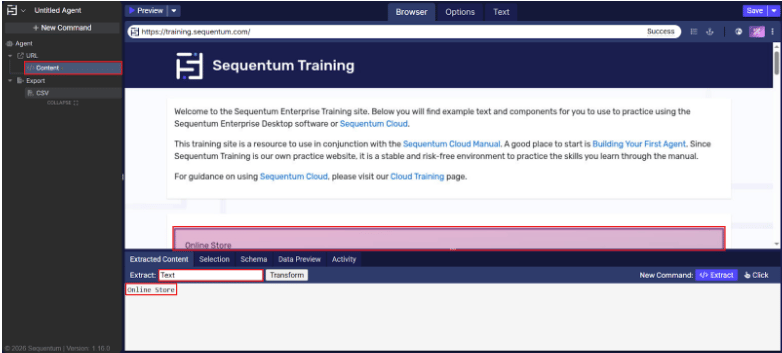
Command properties
The Content command can extract several types of data from a selected element.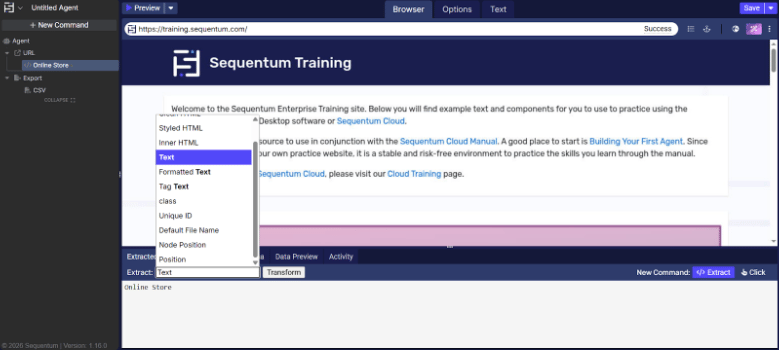
Transform
The Content command can use regular expressions, JavaScript, C#, or Python to transform extracted content. Use transformations to clean extracted data or divide it into separate fields, such as splitting a postal address into its components. For example, a transformation can remove the$ character from a product price of $400, leaving only the numeric value.
Capture → selected content
This section shows the content selected by the command on the current page. If no content is selected or the selection is missing, it displays No selected Content.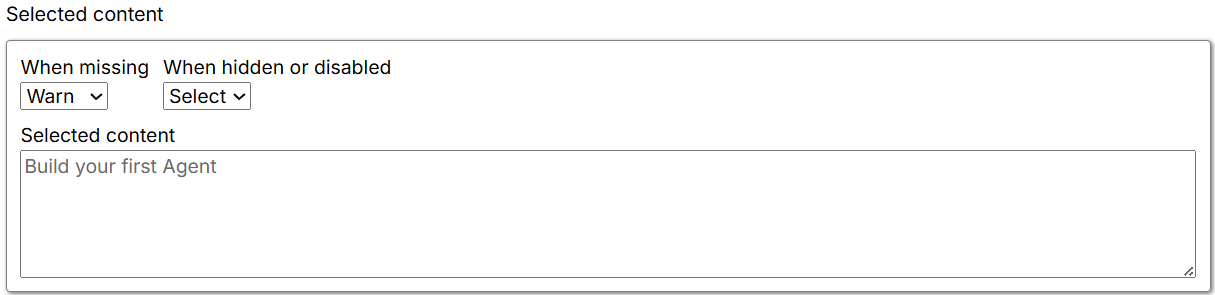
-
When missing: Specifies what happens when the selection does not exist on the current page. The default is Warn.
- Fail: Stops the Agent and returns an error. If commands are running in parallel, the Agent logs the error and moves to the next parallel command.
- Warn: Logs a warning and continues processing subsequent commands.
- Ignore: Logs neither an error nor a warning, skips child commands, and moves to the next parallel command.
- Passthrough: Ignores the error but continues executing child commands.
-
When hidden or disabled: Controls how the Agent handles element selection based on visibility and enabled or disabled state.
- Select: Selects visible and disabled elements that match the XPath.
- Ignore: Selects only elements that are present and enabled—that is, elements that match the XPath and are interactable.
- Selected content: Shows the content selected by the command on the current page. If no content is selected or the selection is missing, it displays No selected Content.
Capture → capture settings
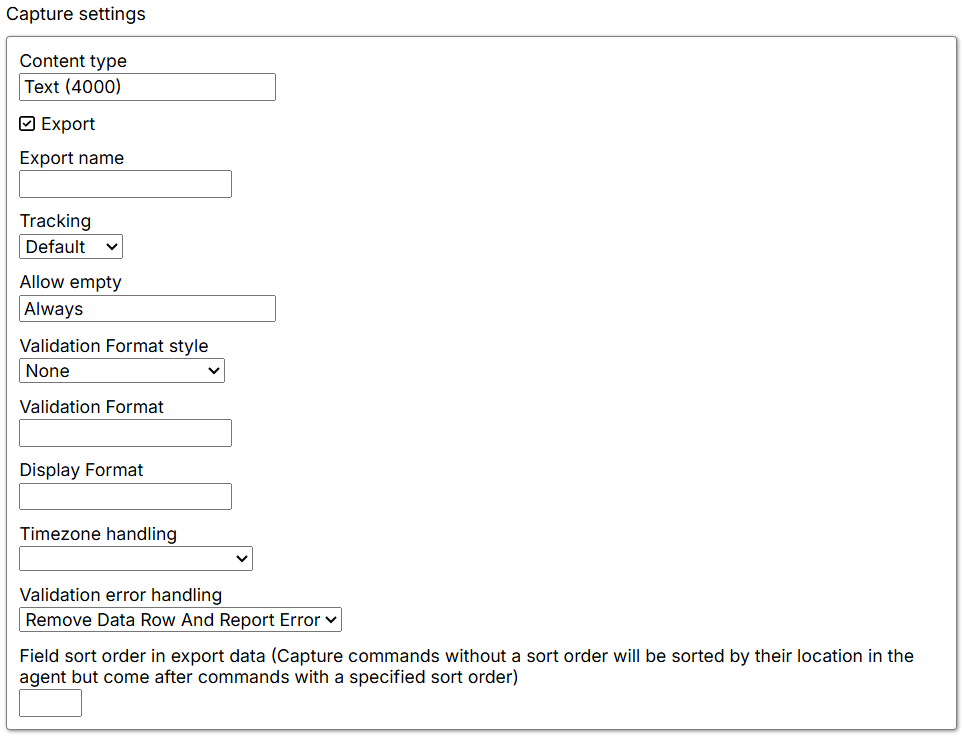
- Text: Captures content as Short Text by default. Short Text supports up to 4,000 characters.
- Long Text: Captures content that exceeds 4,000 characters.
- File: Captures documents, images, or other file types.
- Integer: Captures a whole number.
- Float: Captures a floating-point number.
- Date: Captures date values that are not associated with a time.
- Time: Captures time values that are independent of a date.
- Date & Time: Captures a combined date and time as a complete timestamp.
- Boolean: Captures a true or false value. Boolean values are stored as integer
1or0. - Big Integer: Captures a 64-bit signed integer.
- Decimal: Captures a decimal floating-point number.
- Export Name: Defines the column name in the export schema so the data can be identified and organized in the exported file.
-
Tracking: Controls whether command content is monitored for changes between runs. The default is Default. This option applies only when Change Tracking is enabled in the command’s export settings.
- Default: Tracks changes.
- Identifier: Marks the captured content as an identifier for change tracking.
- Excluded: Excludes the captured content from change tracking.
- Always: Permits empty or missing values.
- Never: Disallows empty or missing values.
- Runtime Only: Permits empty values during runtime while enforcing restrictions at other times.
- Percentage: Permits a specified percentage of empty values.
-
Validation Format Style: Selects the validation and formatting applied during export:
- None: Applies no formatting or validation.
- Date: Validates and formats values as dates using the defined date format.
- Numeric Value Range: Ensures numeric data falls within a specified minimum and maximum range.
- JSON: Validates the data as properly structured JSON.
- Validation Format: Defines the pattern or structure used with the selected Validation Format Style.
- Display Format: Determines how validated data is presented or exported.
-
Timezone handling: Specifies how time zones are handled during export.
- Assume Local Time Zone: Treats times as being in the system’s local time zone.
- Assume Universal Time Zone: Treats all times as UTC, regardless of local time.
- Adjust to Universal Time: Converts local time to UTC.
-
Validation error handling: Determines what happens when data validation fails.
- Report Error: Increases the error count while retaining the row in the export.
- Report Failure: Reports the failure.
- Remove Data Row: Removes the entire row from the export.
- Remove Data Row and Report Error: Removes the row and increases the error count.