

Use Action Repeater for pagination
- Select the element that triggers the next iteration. In this example, select Next.
- Choose whether to repeat When Exists or When New.
- Choose when to evaluate the loop condition and set a repeat limit if needed.
- Keep the default
element.click()action or replace it with a custom JavaScript action.
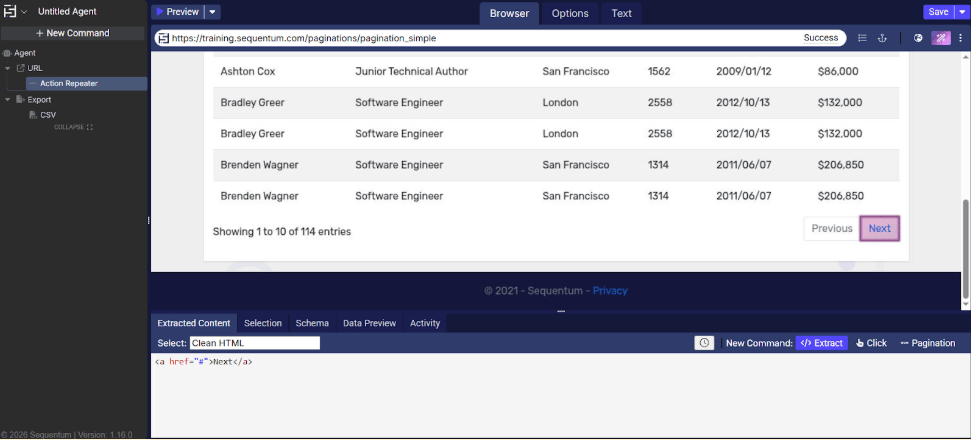
Command properties
Repeater settings
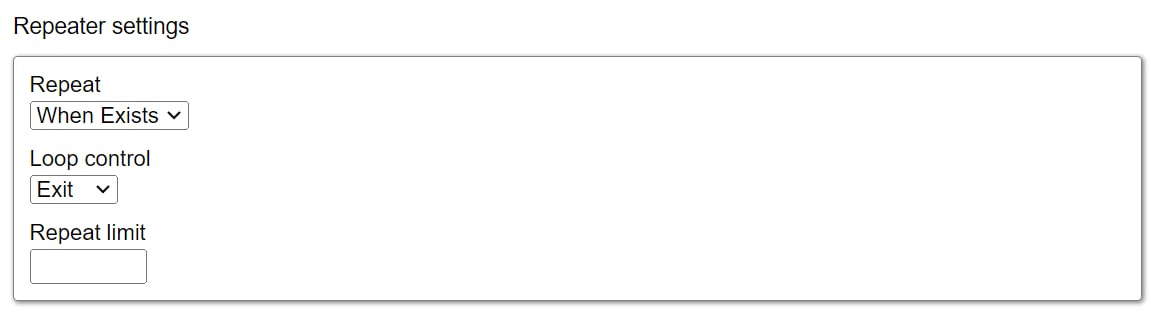
- Repeat: Specifies the action to perform on the selected web content.
- When Exists: Continues to repeat the action as long as a selected object is available.
- When New: Repeats the action whenever a new object appears instead of using the previously selected object.
- Loop control: Specifies whether to evaluate the loop condition on entry or exit during pagination.
- Exit: Evaluates the condition after the child commands have been executed for the first time.
- Entry: Evaluates the condition before executing the child commands.
- Repeat limit: Specifies the maximum number of times the loop can repeat.
Selected action element
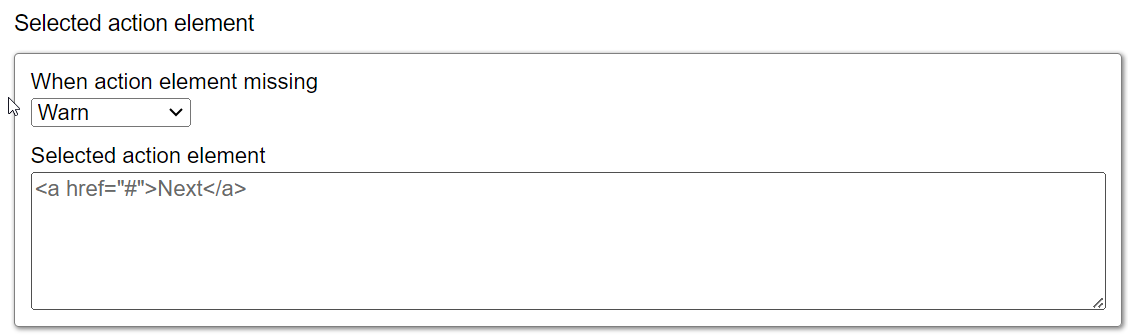
- When action element missing: Specifies the Agent’s behavior when content is not found. The default is Warn, which logs a warning and continues with the next command.
- Fail: The Agent stops and returns an error. If parallel commands exist, it logs the error and moves to the next parallel command.
- Warn: The Agent logs a warning but continues processing further commands.
- Ignore: The Agent logs neither an error nor a warning, skips child commands, and moves to the next parallel command.
- Passthrough: The Agent ignores the error but continues executing child commands.
- Selected action element: Displays the element selected by the command on the current page. If no action element is selected or the selection is missing, the read-only box displays No selected content.
Action settings
The Action settings section determines which JavaScript actions the command performs. The default value iselement.click(). To customize the actions, clear the Use default action script checkbox.
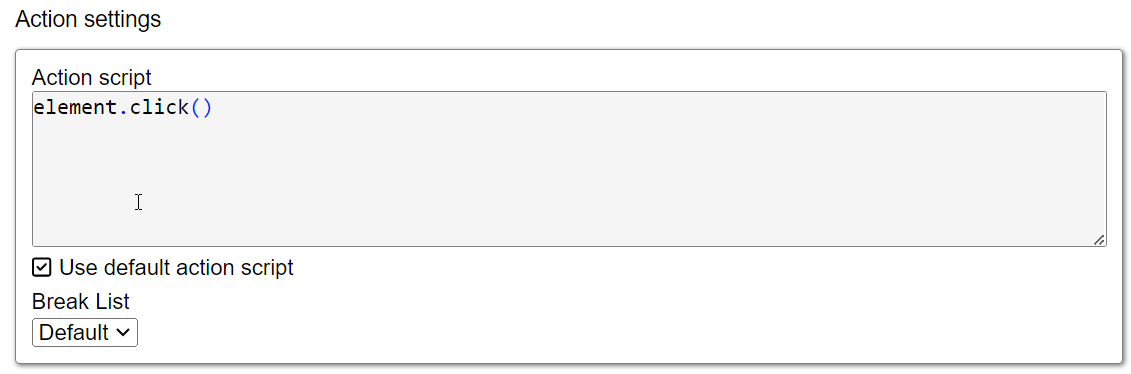
- Action script: Defines the JavaScript actions to perform. The command generates actions automatically from the form selection, but you can clear Use default action script and enter JavaScript manually.
- Use default action script: Determines whether to use the automatically generated action. Clear the checkbox to enter a different action in Action script.
- Break list: Specifies whether the action breaks an HTML area. Actions that load a new page always break HTML areas. The default value is Default, which you can change to Yes or No based on the page load.
- Yes: Enables the Break list option.
- No: Disables the Break List option.
Browser
See Browser for more information.Wait for content settings
The Wait for Content command can wait for web content to appear on a page or for a specific URL to finish loading. When it is configured to wait for web content, you must select an element in the browser. The parent action command then waits until that element is available on the page. These Wait for Content settings are effective only with an active browser wait selection, so they apply only to the current active browser.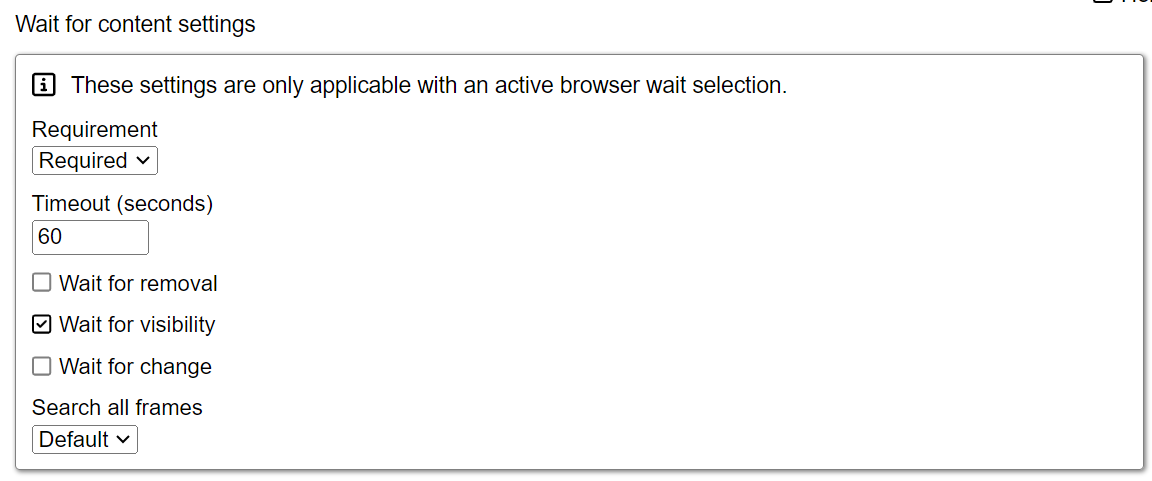
- Requirement: Specifies how the command waits for content to appear or for a URL to finish loading. The default is Required.
- Required: Waits for content to appear or for a specific URL to fully load. If the content does not appear within the specified Wait for Content Timeout, the command fails.
- Optional: Waits for content to appear or for a specific URL to fully load, but does not fail the parent action command if the content does not appear within the specified Wait for Content Timeout.
- No Wait: Completes the parent action command as soon as the content appears, without waiting for it to fully load.
- Timeout (seconds): Specifies how long to wait for the action to complete before parsing the page. The default is 60 seconds.
- Wait for removal: Waits until the selected element is removed from the page before continuing, rather than waiting for it to be present. This option is disabled by default.
- Wait for visibility: Waits until the selected element is visible on the page before continuing. This option is enabled by default.
- Wait for change: Waits for any change on the page before continuing. This option is enabled by default.
- Search all frames: Specifies whether to wait for every frame on the page to load fully before continuing.
- Default: Inherits the setting from the parent command.
- Yes: Checks the URL of all frames and monitors all web requests that load content asynchronously.
- No: Checks only the selected frames.