

Configure a branch condition
Build a condition from the selected XPath and apply transformations when needed.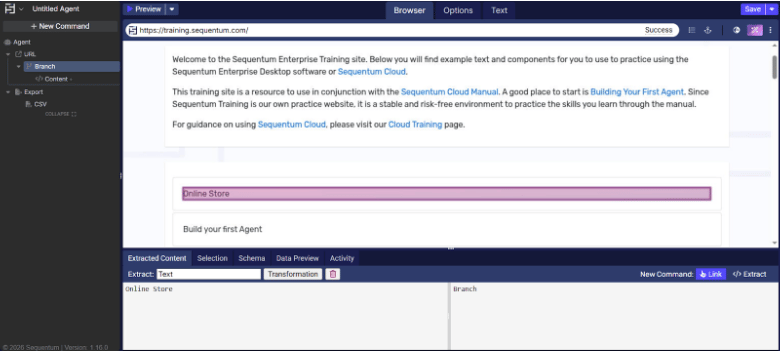
Command properties
Selected content
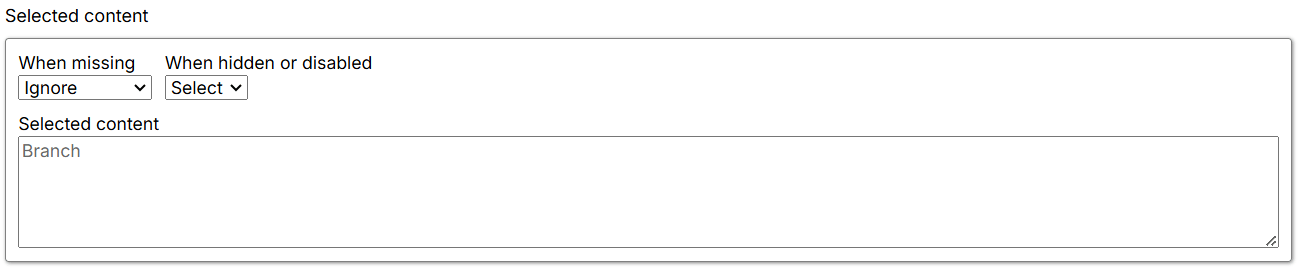
- When missing: Defines how the Agent behaves when content is not found. The default is Fail, which means the Agent stops execution or logs an error and proceeds to the next sibling command.
- Fail: The Agent stops and returns an error. If parallel commands exist, it logs the error and moves to the next parallel command.
- Warn: The Agent logs a warning but continues processing further commands.
- Ignore: The Agent logs neither an error nor a warning, skips child commands, and moves to the next parallel command.
- Passthrough: The Agent ignores the error but continues to execute child commands.
- When hidden or disabled: Controls how the Agent handles selected elements based on their visibility or enabled state.
- Select: The Agent selects visible and disabled elements that match the XPath.
- Ignore: The Agent selects only elements that are present and enabled—that is, elements that match the XPath and are interactable.
- Selected content: Shows the content selected by the command on the current page. If no content is selected or the selection is missing, it displays No selected Content.
Configure branch
Basic
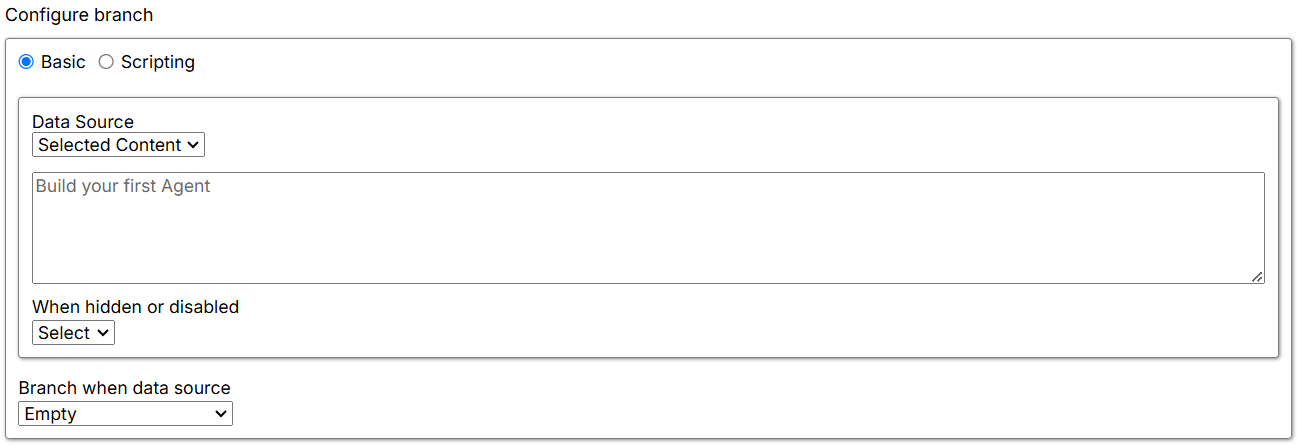
Use Basic to define the conditions that determine whether to enter a branch.-
Data source: The source of the data consumed.
- Data List: Uses data from the parent Data List command. Select the specific Data List and the name of the subcommand or column from which to retrieve data. A transformation is also available for further customization.
- Command: Uses the parent command or the parent’s parent command as the Branch command’s data source. A transformation is also available for further customization.
- Agent Parameter: Uses input parameters as the Branch command’s data source. A transformation is also available for further customization.
- Action Result: Uses an action result as the input data source. Available results include Page HTML, Page URL, and Is Error.
- Selected Content: Compares the content of a selected web element with a specified constant.
-
When hidden or disabled: Controls how the Agent handles selected elements based on their visibility or enabled state.
- Select: The Agent selects visible and disabled elements that match the XPath.
- Ignore: The Agent selects only elements that are present and enabled—that is, elements that match the XPath and are interactable.
-
Branch when data source: Specifies the condition type and comparison logic. It includes unary and binary operators such as:
- Empty / Not Empty
- Equals / Does Not Equal
- Greater Than / Greater Than or Equal
- Less Than / Less Than or Equal
- Contains / Does Not Contain
- Starts With / Ends With
- Matches / Does Not Match
- Always True / Always False
Scripting
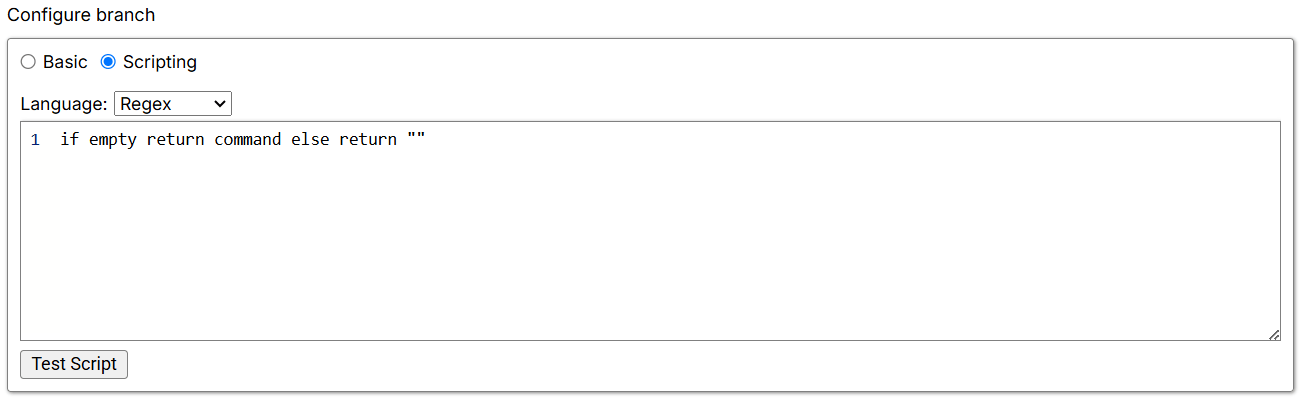
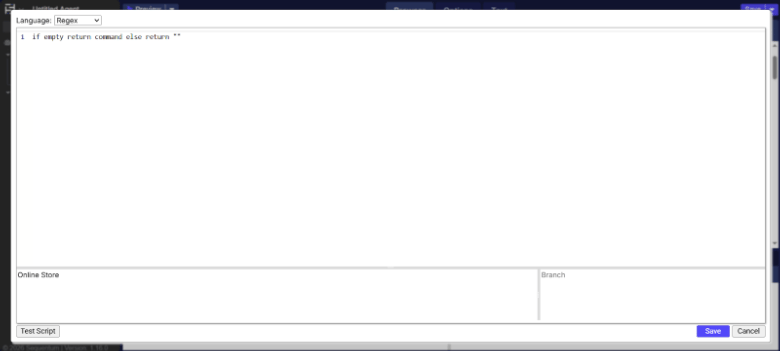
- Language: Specifies the scripting language for advanced conditions or transformations. Supported languages are Regex, C#, Python, and JavaScript.